How to Export Voice Notes
from WhatsApp & Telegram
The voice notes of someone you love are precious. Here's how to save and export them from WhatsApp and Telegram — so you can recreate their voice with AI.
Download the App
Why export voice notes?
Old voice messages are often the clearest recordings we have of a loved one speaking naturally. Exporting and saving them means you can keep them safe forever — and use them to recreate their voice with RightBack.ai.
Export a voice note from WhatsApp
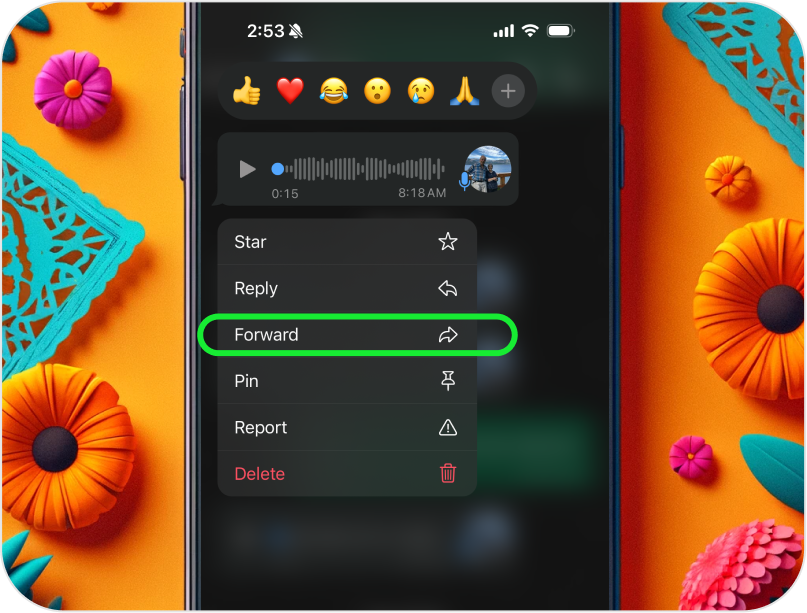
1Select the message
Open the chat, then tap and hold the voice message until the menu appears and choose Forward.
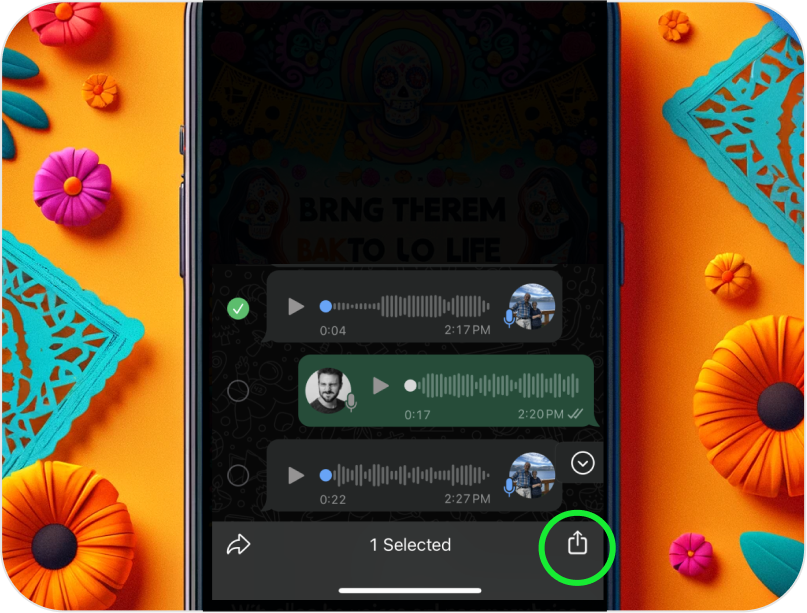
2Tap Share
Tap the Share icon (bottom right) to open your device's share menu.
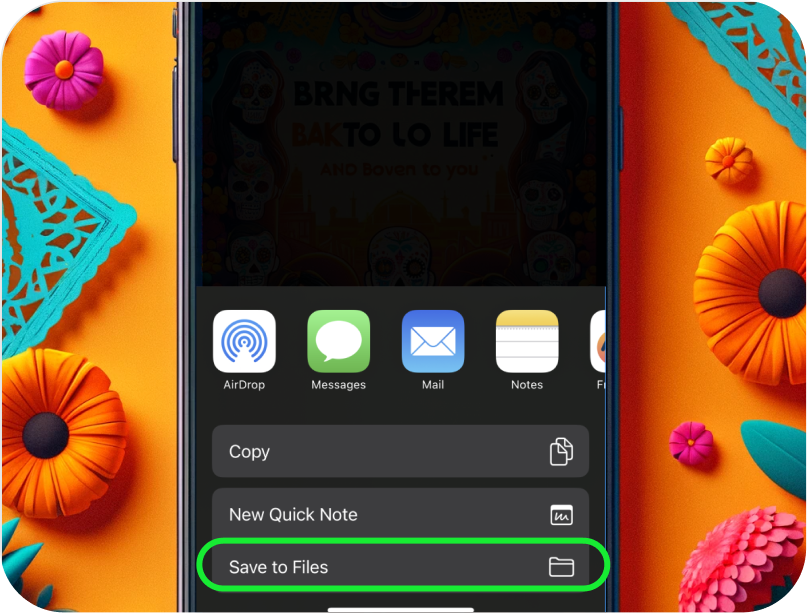
3Save to Files
Choose Save to Files to store the audio, ready to upload to RightBack.ai.
Export a voice note from Telegram
Open the chat
Go to the conversation that contains the voice message you want to keep.
Tap and hold the voice message
Press and hold the audio, then choose Save to Downloads or Share.
Save the file
Save it to your device (Files / Downloads), ready to upload to RightBack.ai.
Turn those voice notes into their voice again
Once your audio is saved, upload it to RightBack.ai to recreate your loved one's voice and personality.
Download the AppFrequently asked questions
What families say
"Hearing my dad say my name again after two years broke me open — in the best way. I didn't know how much I needed it."
"I made a clone of my wife's voice from old WhatsApp notes. Now our daughter can hear her mom read to her. It's the most precious thing we have."
"I was skeptical, but it truly sounds like my brother. It doesn't replace him — it just lets me feel close to him again."
More on recreating their voice
Keep their voice forever
Export their voice notes, then recreate their voice with RightBack.ai — free to start.
Download the App